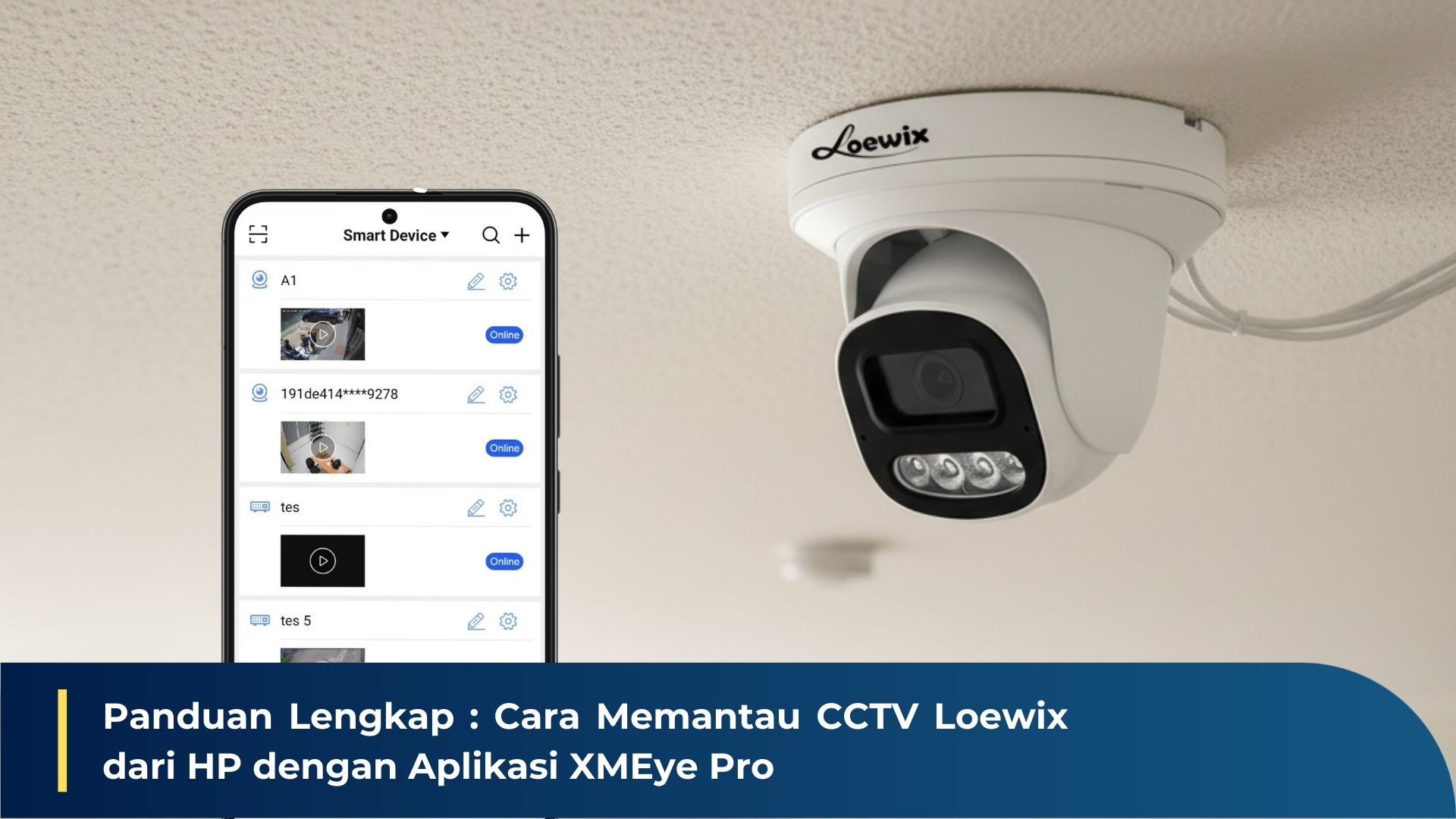
One of the main advantages of owning a Loewix security system is the ability to monitor your property anytime, anywhere, directly from your smartphone. By using the XMEye Pro app, you get full access to view recordings in real-time.
This guide will walk you through the entire process, from downloading the app to successfully connecting your NVR (Network Video Recorder).
Step 1: Download and Install XMEye Pro

The first thing you need to do is install XMEye Pro on your smartphone. The app is available for Android, iOS, and even computers. You can get it through three easy ways:
- Google Play Store: For Android users, simply search for it in the Play Store.
- Apple App Store: For iPhone or iPad (iOS) users, the app is available for direct download from the App Store.
- XMEye Official Website: You can also download the app directly from xmeye.org or by scanning the QR code available there.
Step 2: Register an XMEye Pro Account

Once installed, you need to create an account to use all its features. The process is quick and easy:
- Open the XMEye Pro app. On the login page, select “Sign Up”.
- Enter your active email address. Ensure it is correct.
- Tap the “Get Code” button. The system will send a verification code to your registered email.
- Check your email inbox, find the email from XMEye, and note the verification code.
- Return to the app, enter the verification code, and select “Next”. If correct, your registration is successful, and you will enter the main page.
Step 3: Adding and Linking the NVR Device

Now that your account is ready, it’s time to link your Loewix NVR to the app.
- On the main page, tap the plus (+) icon in the top right corner of the screen.
- Select “NVR” from the device options.
- You will have two ways to add the device: via Serial Number or IP Address. For most users, using the Serial Number is highly recommended.
Using Serial Number (Recommended):
Fill in the following fields:
- Device Name: Give your system a recognizable name, like “Home CCTV” or “Front Shop.”
- Device Serial Number: Enter the serial number found on your NVR. The easiest way is to scan the QR code on the NVR unit. You can also find it in the NVR menu under: Main Menu > System > Info > Version.
- Username: Enter your NVR username. The default is admin.
- Password: Enter your NVR password. By default, this is usually blank (leave it empty).
- Tap “OK” once everything is filled.
Using IP Address (Alternative):
This method is typically for specific network needs. You will need to enter the Device Name, IP/Domain Address, Device Port, Username, and Password.
Done!
If followed correctly, your Loewix NVR is now connected to XMEye Pro. You can now enjoy peace of mind by monitoring your property's security anytime and anywhere, right from the palm of your hand.